
Free tool Google review link and QR code generator
Make one link that opens the Google review box for your business, a QR code to print, and messages you can send to customers. It takes about two minutes.
Free tool from Carey Enterprises
Make your Google review link and QR code
One link that opens the review box for your business, a QR code for counters and invoices, and texts you can send customers.
1. Find your Place ID
Open Google’s Place ID Finder, search your business name, and copy the ID it shows (it starts with “ChIJ” for most businesses).
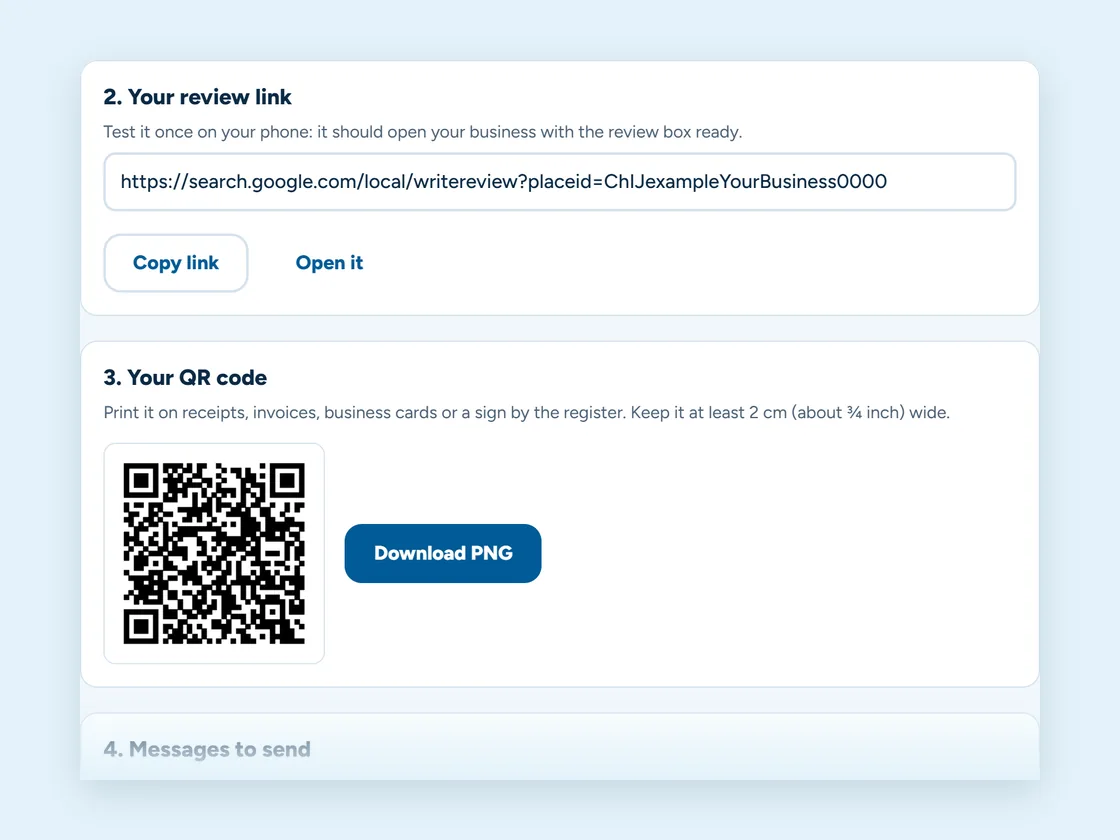
2. Your review link
Test it once on your phone: it should open your business with the review box ready.
3. Your QR code
Print it on receipts, invoices, business cards or a sign by the register. Keep it at least 2 cm (about ¾ inch) wide.
4. Messages to send
Ask every customer the same way. Google doesn’t allow offering anything in return for a review, or only asking the happy ones.
Want help getting and answering reviews?
Our Google Business Profile management includes a simple way to ask every customer for a review, a reply to every review, and a profile that stays current.
Your Place ID and business name stay in this page. The link format is the one Google documents for review requests.
Why it matters
Reviews are the part of local search you can grow every week
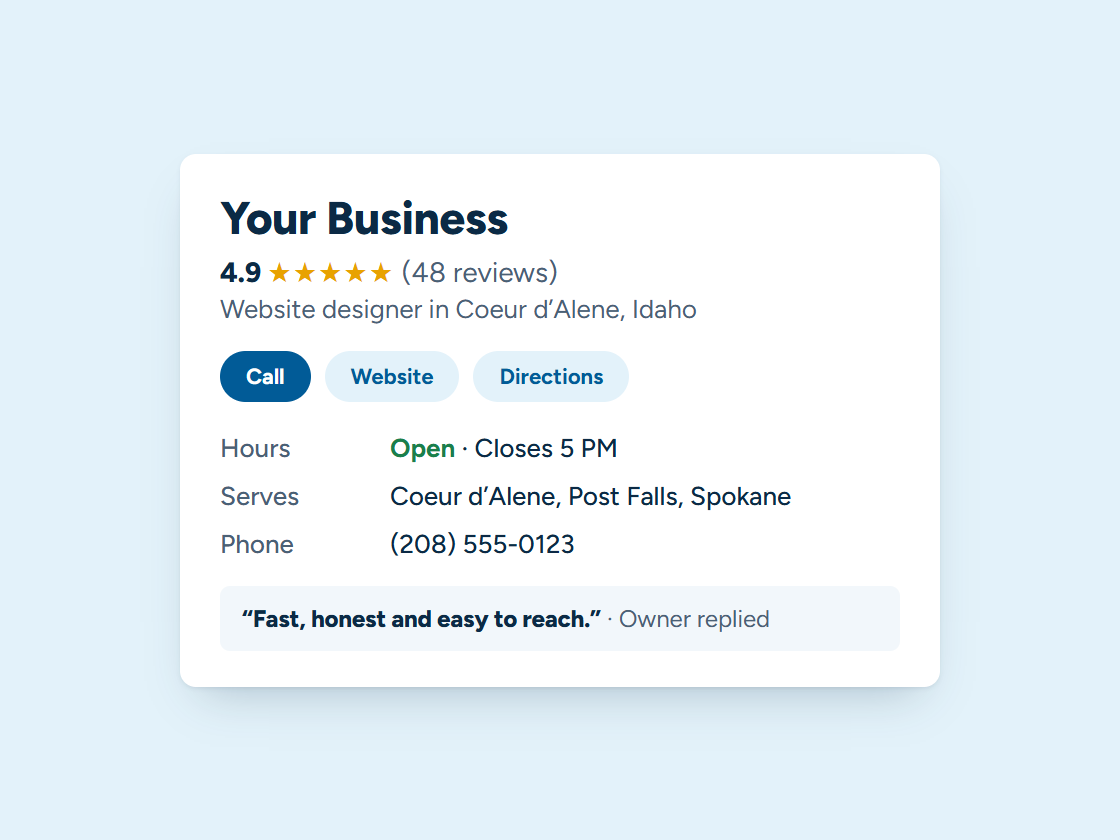
The number of reviews, how recent they are and what they say all affect where you show up in the map results, and whether people call. The businesses with the most reviews are usually just the ones that ask every customer, every time.
A direct link removes the hard part: customers don’t have to search for you and hunt for the review button. Send it the same day you finish the job, while the experience is fresh.
Your result
What you get
Once you paste your Place ID, the tool gives you four things:
- Your review link: one address that opens the Google review box for your business. Click it yourself first to check it’s your business.
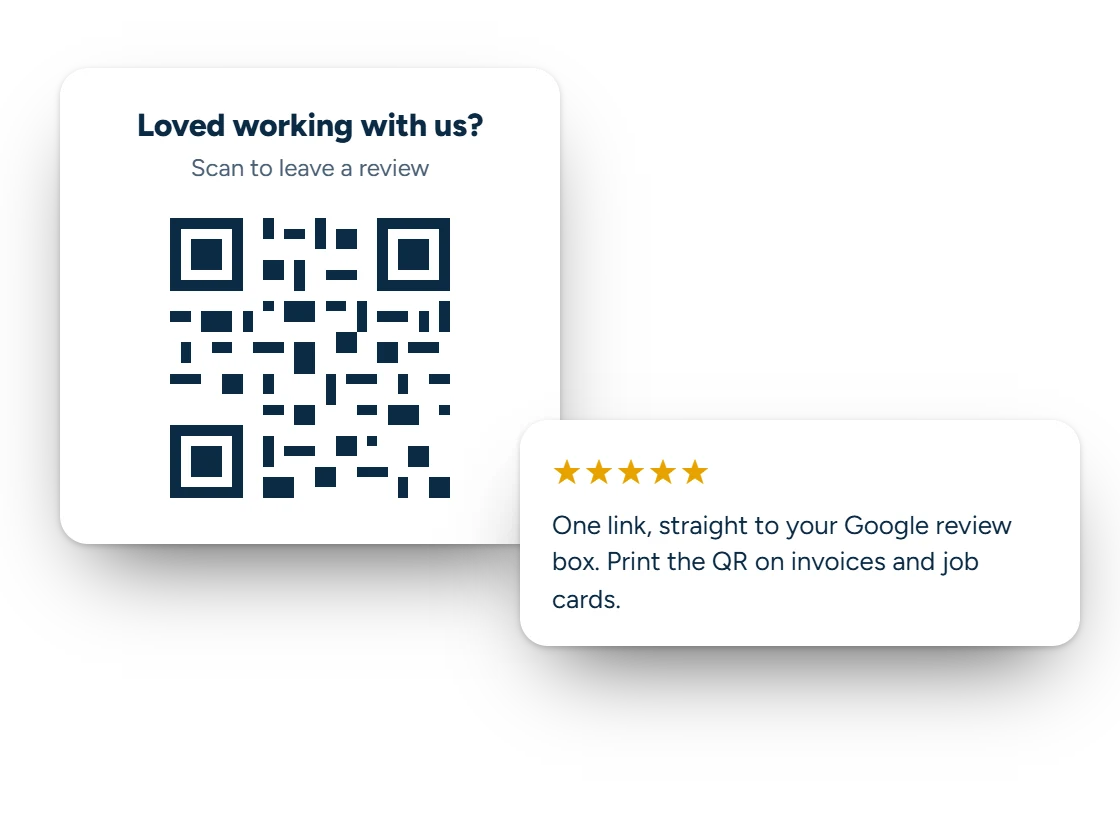
- A QR code that opens the same link, to print or add to an invoice.
- A text message you can copy and send after a job.
- An email for customers you’d rather not text.
If the tool says the Place ID doesn’t look right, copy it again from Google’s Place ID Finder: it starts with “ChIJ” for most businesses.
Next steps
What to do with your result
Step 1
Ask every customer
Same day, same way, every time. Asking only the customers you expect to be happy breaks Google’s rules.
Step 2
Put the QR code where the job ends
On the invoice, the receipt, a counter sign or a sticker on your equipment.
Step 3
Reply to every review
Thank the good ones by name and answer the bad ones calmly. Our profile grader checks this too.
Questions
Google Review Link Generator questions
What is a Place ID?
Google’s unique ID for your business on Maps. Google’s Place ID Finder shows it when you search your business name.
Can I offer a discount for a review?
No. Google’s rules prohibit offering anything in exchange for reviews, and asking only the customers you expect to be happy. Ask everyone the same way.
Where should I use the QR code?
Anywhere a customer is when the job is done: invoices, receipts, business cards, a sign by the register or a sticker on your equipment.
Does the link expire?
No. It works as long as your Google Business Profile exists.
Should I reply to every review?
Yes, good and bad. A short thank-you shows people you’re paying attention, and a calm reply to a bad review is read by every future customer who sees it.
Can I use the same link on my website?
Yes. A “Leave us a review” link on your contact page or in your email signature works the same way.
Keep exploring
Keep going
Want more reviews without the follow-up work?
Book a free call. We’ll look at your Google profile and set up a simple way to ask every customer.